


Panda Video Compress & Convert
4.78.97K Reviews
App Specs
- Version
- 1.3.31
- Updated On
- License
- Free
- Downloads
- 10,000,000+
- Developer
- Farluner Apps & Games
- Categories
- Video Players & Editors
- Platform
- Android, iOS
Screenshots
 Analysis by AppCompare
When a video is too large to keep on my phone or share comfortably, I want a tool that makes the trade-off between file size and picture quality easy to judge. That is the practical appeal of Panda Video Compress & Convert: it focuses on shrinking and converting videos rather than trying to be an all-purpose editor. I find that focus useful, though it also means the app is not the right answer when I want to trim clips, add effects, or build a finished video.
What the free access does—and does not tell me
Panda Video is a free video utility from Farluner Apps & Games, in the video player and editing category. The app has a 4.7 average from around 646,000 ratings, and more than 10 million installs. Those figures suggest that many people find a straightforward use for it, but they don’t tell me how a particular video will look after compression; I still check the result before deleting the original.
The app is rated for Everyone, and its current version is 1.3.29, with Android 7.0 or later required. There are in-app purchases, with listed items ranging from $0.49 to $59.99. That makes the initial free access an easy way to try the basic workflow, but I would not assume that every option is free or that a particular purchase is necessary. I’d first see whether the free experience covers the job I actually need done.
Where the value comes from
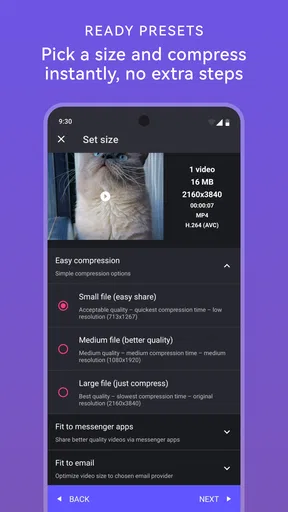
For me, the main value is practical rather than creative: a large clip can take up less room, and a converted file may be easier to use in another situation. The choice of small, medium, or large gives a less technical starting point than asking me to set a bitrate or codec myself. I can choose a broad target, inspect the estimated space saving, and decide whether the compromise sounds reasonable.
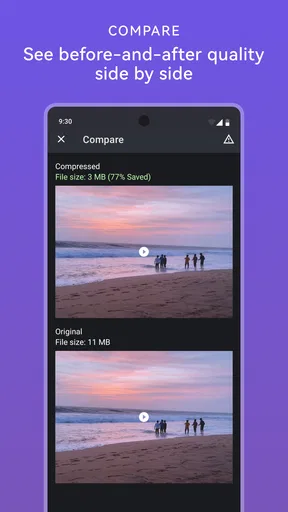
That estimate is useful for planning, but I treat it as a guide, not a promise that every video will shrink by the same amount or retain identical detail. A clip with lots of movement, fine textures, or low light can respond differently from a static scene. If the footage matters, I would keep the original until I have watched the compressed copy and confirmed that faces, text, and motion still look acceptable.
When I would reach for it
A realistic example is a day out when I have recorded several long clips and later notice that they are taking up more space than I want to spare. Rather than deleting everything, I can select a few candidates, compress them in a batch, then review the output before deciding what to keep. That workflow is more useful than processing one clip at a time when I have a backlog, but it also calls for care: I would avoid selecting every original at once until I know how the chosen setting looks on my footage.
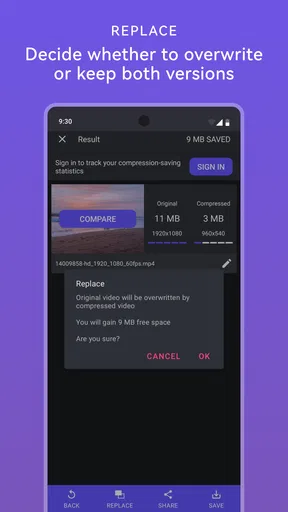
It can also help when I need to send a video and the original file feels unnecessarily large for the intended use. A smaller copy may be more convenient to share, while the full-quality original stays archived. I see that as a sensible two-copy habit: use the reduced version for routine sharing, and retain the source for later editing or for situations where image quality matters more.
Worth Reading Before You Choose

EA SPORTS FC Mobile 26 Is a Bigger Football Game, but It Takes Time

Flipboard Shows What News Apps Must Do Beyond the Feed

Switching to Android Auto Means Rethinking Your Driving Routine

Google Calendar Makes a Crowded Week Easier to Manage

Ludo King Makes the Most of the Minutes Between Plans

Baby Panda World Brings Quick Play to Modern Phones, but Its Game Library Feels Busy
People who regularly record family events, travel clips, or short demonstrations are likely to understand the appeal quickly. Someone who rarely saves video, has plenty of free storage, and never needs to convert formats may get little benefit from installing another utility. The best reason to use Panda is a recurring file-size or compatibility problem, not simply the hope that every video app should have more tools.
How Panda fits among video tools
Compared with a full video editor, Panda is aimed at a narrower task. Editors are better when I need to cut a clip, arrange scenes, add titles, or adjust the presentation; they may involve more steps than I want when all I need is a smaller file. Compared with a basic file-management workaround, a dedicated compressor makes the size-versus-quality choice more direct. I would still choose an editor for creative changes and a simple transfer method when no change to the video is needed.
Why Panda Video Compress & Convert Caught My Eye
First off, let’s talk about the interface. It’s clean, intuitive, and doesn’t make you feel like you need a degree in rocket science to use it. I appreciate an app that doesn’t bombard me with ads every two seconds or overwhelm me with unnecessary features. With Panda, it’s all about simplicity and getting the job done.
Getting Started
Installation was a breeze. I just hopped onto the app store, clicked download, and voila! The app was ready to roll in under a minute. Once you open it, you’re greeted with a straightforward menu that asks you to select a video. Simple, right? Just the way I like it.
When I am choosing a clip, I find it helpful to start with one whose quality I can judge easily, rather than running a whole collection through the same setting. A short test gives me a feel for the output before I commit time to a batch. I also make a note of which copy is the compressed one, so I do not mistake it for the original later.
Compressing Videos Like a Pro
Now, onto the real magic. I had a ginormous video that was eating up my phone’s storage like there was no tomorrow. With Panda, I was able to compress it significantly without losing any noticeable quality. You can choose the size you want—small, medium, or large—and it shows you how much space you’ll save. It’s like having a personal storage genie!
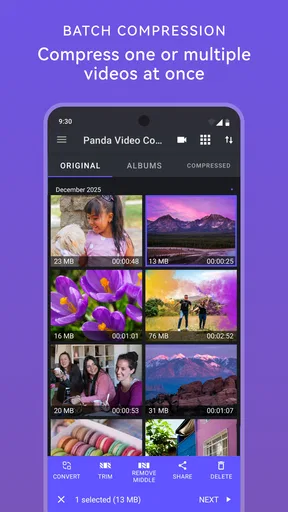
Oh, and here’s a fun fact: you can even compress multiple videos at once. Just select them, choose your preferred settings, and let the app work its magic. It’s perfect for those of us who have a ton of videos from holidays or events that we just can’t bring ourselves to delete.
Batch processing is particularly handy when I am clearing space in a deliberate way: I can prioritize clips I only need for casual viewing, while leaving important originals untouched. I would not treat a batch selection as a substitute for reviewing each result. A compression choice that is fine for a clip meant for a phone screen might be disappointing for footage I plan to crop, edit, or show on a larger display.
Conversion Capabilities
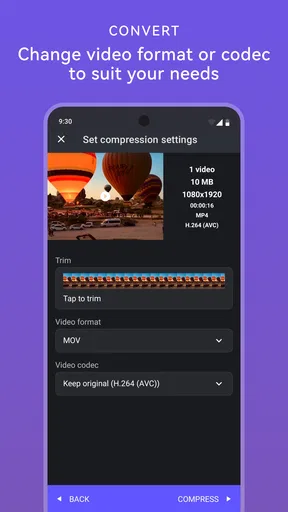
Beyond compression, Panda also offers video conversion. Whether you’re looking to switch up the format for compatibility reasons or just experimenting, this app’s got you covered. It supports a range of formats, so you’re not left in the lurch with any weird file types.
Conversion is most useful when the problem is that a destination or playback setup does not handle a file as expected. I would try it on a copy first, then open the converted file in the app or device where I intend to use it. A successful conversion is not the same as a smaller file, so I would choose the operation based on the actual obstacle rather than assuming conversion will automatically save storage.
Performance and Speed
I was pleasantly surprised by how quickly the app processed my videos. I expected to wait around for ages, but it was done in a jiffy. The app doesn’t drain your battery either, which is a big plus. I could continue scrolling through social media or catching up on emails while it worked in the background.
Even when processing feels quick, I would avoid starting a large batch right before I need to leave or send the files. Video work can take time, and keeping the original available gives me a safe fallback if I change my mind about the output. For a single clip, I can make a quick decision; for a group of important recordings, a little patience and a spot-check are worth it.
Security and Privacy
We all know how important privacy is these days, and thankfully, Panda respects that. The app doesn’t require access to unnecessary permissions, and your videos are processed directly on your device. There’s no need to worry about your personal clips being uploaded to any servers.
I still recommend reviewing the permissions and choosing files carefully, especially when a phone contains personal recordings. I also keep a separate original before making changes to any clip I would regret losing. That is useful housekeeping for any media workflow, regardless of which compressor I use.
Limits worth considering
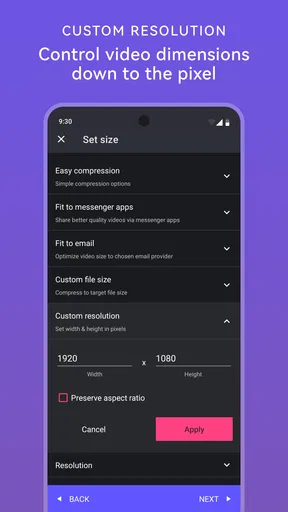
The simple size presets make the app approachable, but they are also less precise than a tool that exposes detailed encoding controls. If I need exact output specifications for a professional handoff, or want to fine-tune compression frame by frame, I would look for a more advanced desktop or mobile editor. Panda’s strength is reducing friction for ordinary jobs, not replacing a technical encoding suite.
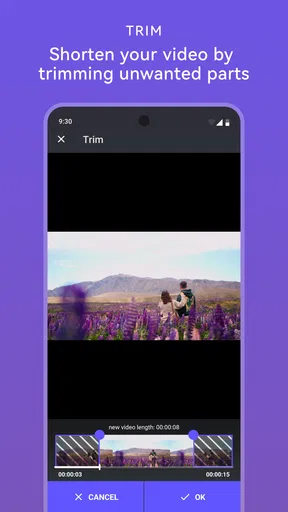
It is also not a substitute for editing. I would not choose it when the real task is to remove an awkward beginning, combine several clips, correct the framing, or add captions. In those cases, an editor is the better first step; compression can come afterward if the finished export is still too large. Likewise, if the footage is irreplaceable and quality is the priority, keeping the original untouched is more important than reclaiming space quickly.
One practical question is whether compression will always make a video dramatically smaller. I would not count on a fixed result: the source clip and the selected setting matter, so I use the displayed estimate to compare options and then inspect the actual output. Another is whether batch compression is worth it. It is when I have a group of ordinary clips to manage, but for a few important videos I prefer to test settings individually.
For someone wondering whether to pay, I would begin with the free access and identify the specific limit that is getting in the way before considering an in-app purchase. The listed purchase range is broad, and I would check the purchase details in the app rather than assume that a particular item unlocks a feature I need. If the free workflow already handles my occasional compression or conversion, there is no reason for me to spend just because extra purchases exist.
A Few Final Thoughts
In a nutshell, Panda Video Compress & Convert has become one of my go-to apps. It’s user-friendly, effective, and it doesn’t try to do more than it promises. Whether you’re battling with storage issues or just need a reliable app to compress and convert videos, Panda’s got your back.
If you’re interested in trying it out, you can easily find it on both the Android and iOS app stores. Give it a whirl and see how much space you can free up on your device. Trust me, your phone will thank you!
My recommendation is to try it when file size is a repeated annoyance and a straightforward preset is enough. I would skip it if I need a full editing workspace, exact encoding controls, or a guaranteed visual result without checking the export. Used with a test clip, a preserved original, and a quick review of the finished file, it offers a convenient way to decide whether a smaller video is a worthwhile trade.
Pros
- Fast video compression with minimal quality loss.
- User-friendly interface
- easy for beginners.
- Supports wide range of video formats.
- Batch processing for multiple videos at once.
- Includes basic editing tools for quick fixes.
Cons
- Limited features in the free version.
- Ads can be intrusive during usage.
- Occasional crashes on older devices.
- Output quality varies with high compression.
- No cloud integration for storage options.
FAQs for Panda Video Compress & Convert
What are the main features of Panda Video Compress & Convert?
Panda Video Compress & Convert offers a variety of features aimed at optimizing your video files. Users can compress videos to save storage space, convert them into different formats for compatibility, and share them easily across platforms. The app supports batch processing, allowing multiple files to be compressed or converted simultaneously, and maintains high video quality despite file size reduction.
Is Panda Video Compress & Convert easy to use for beginners?
Yes, Panda Video Compress & Convert is designed with user-friendliness in mind. The app features a straightforward interface with step-by-step instructions, making it accessible for users with no prior experience in video editing or compression. The app provides preset options for quick compression, while also offering advanced settings for more experienced users.
Does Panda Video Compress & Convert support all video formats?
Panda Video Compress & Convert supports a wide range of popular video formats, including MP4, AVI, MKV, MOV, and more. This ensures that users can work with almost any video file they have. However, for less common file types, it’s recommended to check the app’s latest updates or documentation to ensure compatibility.
Are there any in-app purchases or ads in Panda Video Compress & Convert?
While Panda Video Compress & Convert is free to download, it does come with in-app purchases that unlock additional features such as higher compression settings and ad removal. The free version may contain ads, but users have the option to upgrade to a premium version for an ad-free experience and enhanced capabilities.
How does Panda Video Compress & Convert affect video quality?
Panda Video Compress & Convert is designed to minimize quality loss during compression. The app uses advanced algorithms to ensure that the video quality remains as close to the original as possible. Users can choose different compression levels, balancing between file size and quality, to suit their specific needs.


